Documentation - Editing - Geometry
- Selecting
- The grid
- Extruding and carving
- Pushing faces and corners
- Moving
- Rotating and flipping
- Copy and paste
- Undo and redo
- Deleting
- Heightmaps
- Keys
A map’s geometry is cubes on a grid: select some, then extrude, carve, push, rotate, flip, move, copy and paste them. Press F2 to enter or leave edit mode, and newmap gives an empty world to try things on.
Keys here are the default bind preset’s. Where the legacy preset differs, it is noted as “legacy”; see Bind presets. Most edits act on the selection and work only while it is in view; otherwise the console says “Selection not in view”.
Selecting
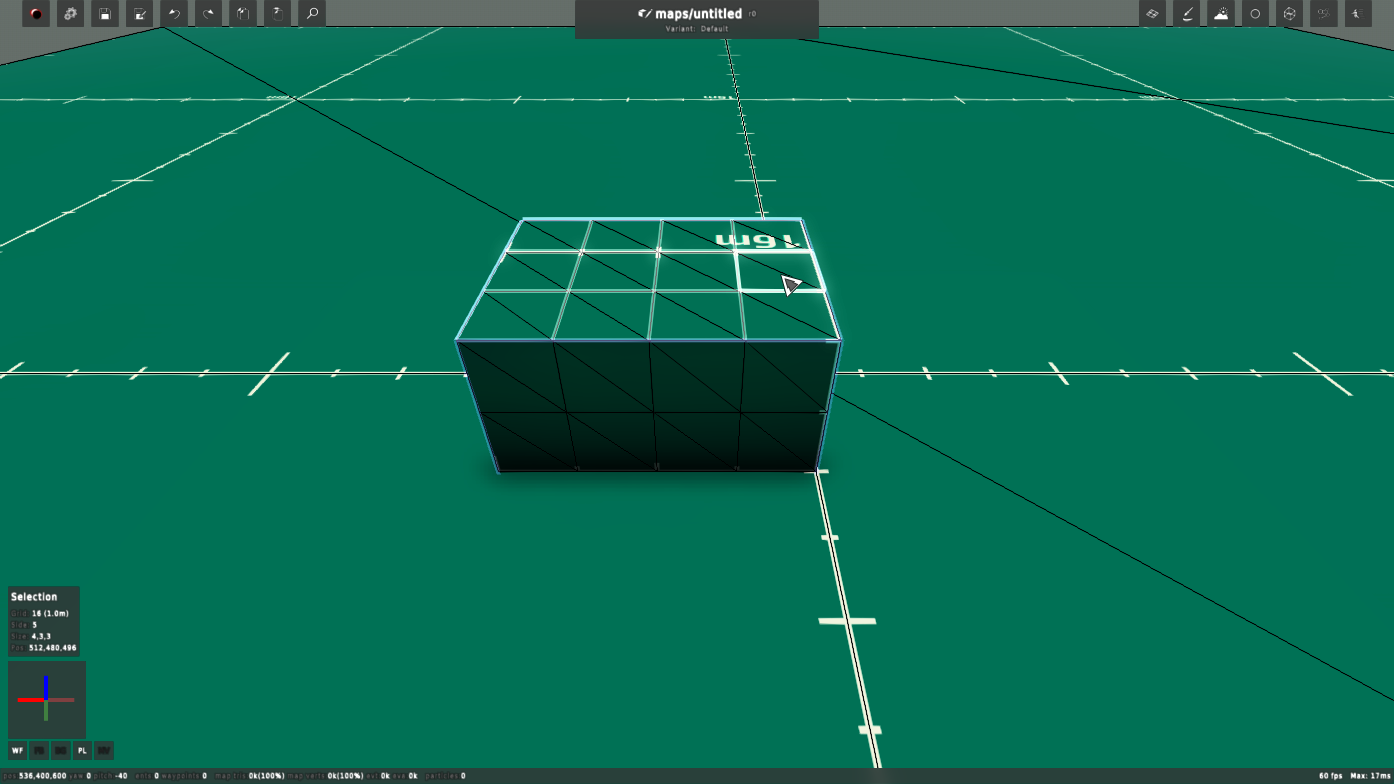
Edit mode starts in cursor mode, so the editor works on whatever the mouse cursor points at; in mouse look (Tab) it works on the centre of the screen. With nothing selected, the cube under the cursor is outlined: that cube, at the current grid size, is what the keys below act on.
- Left click: select the cube under the cursor. Drag to select an area of cubes on the face you started on.
Shift+ left click, orShift+ right click: extend the selection to take in the cube clicked, turning it to the side clicked. In mouse look a right click does this withoutShift; in cursor mode a right click opens the context menu of an entity under the cursor and, held, looks around.- Middle click and drag: select corners instead of whole cubes, down to half a cube, for pushing.
SpaceorEsc: cancel the selection, and stop moving entities.- Hold left
Ctrl: select through the selection and entities, to reach the cubes behind them. It also shows the paste preview.
The selection always has one side, the face the edits push from: the side you started on, shown as Side in the selection box (see Selection and status).
X,Y,Z: turn the selection to its side on that axis, and press again for the opposite side (legacyShift+X,Shift+Y,Shift+Z). While moving the selection or entities, they keep the move to that axis instead, and a second press frees it.;+ wheel: step the selection through its six sides.
The grid
Every cube is a power of two in size. The grid size is the size of cube you select and edit, from 1 unit (gridpower 0) to 4096 (gridpower 12); 16 units is one metre.
G+ wheel: grid size (gridpower). Changing it drops the selection, as a selection is made of cubes of one size.Alt+G: cycle the grid drawn over surfaces: the paste grid with the paste preview, a grid around the cursor, a grid around the selection box, or none.
Extruding and carving
The mouse wheel, with no key held, adds or removes a layer of cubes on the selected side.
- Wheel down: extrude, adding a layer of cubes out from the selected side. The selection moves out with the new face.
- Wheel up: carve, removing the layer of cubes behind the selected side. The selection moves in with it.
Shift+ wheel: the same, but the selection grows over the new cubes, or shrinks as they go, rather than moving. This is the quick way to select a block: extrude it withShiftheld.- Next to the cursor, Edit cubes counts the layers added (negative) or removed since the selection was made.
Pushing faces and corners
A cube’s faces can be pushed in, in eighths of the cube, to make slopes, ramps and wedges. These keys are held while turning the wheel; wheel up pushes in and wheel down pulls back out.
F+ wheel: push the selected side of every cube in the selection. With corners selected (middle drag), only those corners move.Q+ wheel: push one corner, the corner of the cube nearest the cursor, on every cube in the selection.- Next to the cursor, Cut face shows how far, in eighths, the face has been pushed.
A push that would bend a cube out of shape is left out, or only the part that keeps it whole is made.
Moving
C(default preset; legacyShift+C): grab. Point at the selection and press it, and the selection box follows the mouse along the surface it lies on until you left click. The cubes stay where they are: grabbing moves the box, ready to select somewhere else of the same size. With entities selected it moves them instead.Alt+C: grab asCdoes, adding every entity under the cursor to the entities moved, not only the first.U(hold): cut. Point at the selection and hold it, and the selected cubes and entities move with the mouse, landing where the selection is when you let go.- While moving, the wheel moves the selection or entities out and in along its side, and
X,YorZkeeps the move to that axis. - Grab and cut need the cursor on the selection when you press the key.
Rotating and flipping
Both turn the contents of the selection around the axis of its selected side, and turn and flip the selected entities with them.
R+ wheel: rotate the selection a quarter turn per notch (rotate). A selection that isn’t square is made square first, taking in more cubes on its shorter side.Ctrl+X: flip the selection, mirroring it across its selected side (flip). LegacyX.
Copy and paste
A copy fills the paste buffer, which keeps it across maps until the next copy.
Ctrl+C: copy the selected cubes, with the selected entities (copy). LegacyC.Ctrl+V: paste. Hold it to see where the paste will go, and let go to paste (paste). LegacyV.- The toolbar’s Copy and Paste buttons do the same, the Paste button pasting at once at the selection.
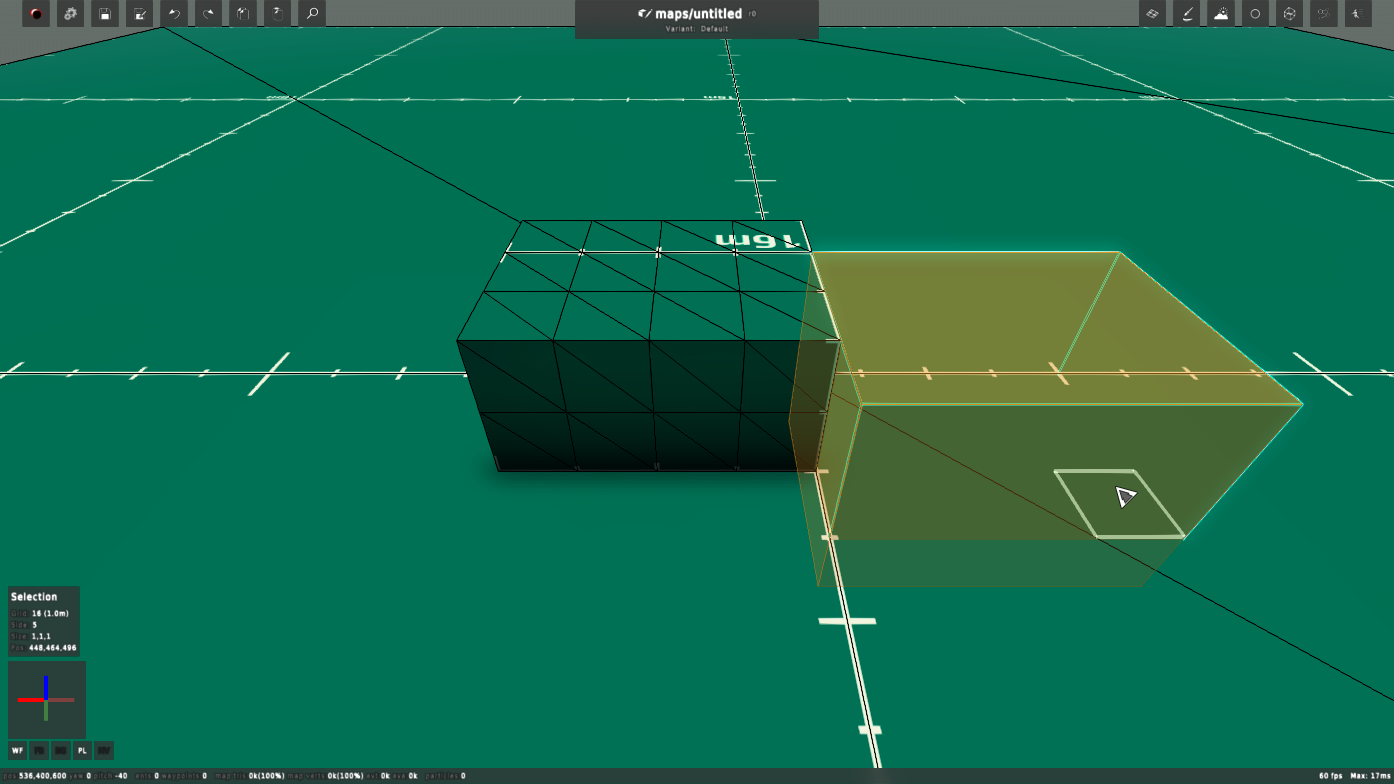
Holding Ctrl, or the paste key, shows the paste preview: the copy drawn see-through at the spot it would land, with a box around it.
- With no selection, the preview follows the cursor, and the paste lands with its corner on the cube under the cursor.
- With a selection, the paste lands with its corner on the selection’s.
- Pasting at another grid size scales the copy to it, so a copy made at gridpower 4 and pasted at gridpower 3 comes out half the size.
- A paste replaces whatever was in its box, empty cubes included.
- With only entities selected and no cubes, copy takes the selected entity, and paste sets the selected entities to it, or adds it at the selection when none are selected.
pastepreview 0in the console turns the preview off and leaves only the box.
Selections can also be saved to file and loaded back as prefabs, with saveprefab and copyprefab, which loads one into the paste buffer.
Undo and redo
Ctrl+Z: undo (undo). LegacyZ.Ctrl+Shift+Z: redo (redo). LegacyO, andCtrl+Shift+Zstill works.- The toolbar’s Undo and Redo buttons do the same, and the info bar says what was undone, a map edit or an entity edit.
An undo step covers every change made to the same selection in a row. Each notch of extruding moves the selection, so each is its own step, but a run of pushes, rotations and flips on one selection undoes all at once. Undo selects the area it changed. How much is kept is set by Undo size in Editor settings (undomegs).
Deleting
Backspace: delete the selected entities, or with none selected, empty the selected cubes.Delete: delete the selected entities.
Heightmaps
Heightmap mode shapes terrain with a brush, pushing the corners of the cubes under it rather than whole faces.
H: heightmap mode, on or off.Pand leftAltalso turn it off.- Wheel: raise (down) or lower (up) the surface under the brush.
K+ wheel: choose the brush; its name is shown in the console.- Middle click a surface: add its texture to the textures the brush changes, or take it away again. With none chosen, or with a selection, the brush changes any surface.
Keys
| Key | Action |
|---|---|
| Left click | Select a cube; drag to select an area |
Shift + left or right click |
Extend the selection to the cube clicked |
| Right click (mouse look) | Extend the selection to the cube clicked |
| Middle click | Select corners; in heightmap mode, choose brush textures |
Space |
Cancel the selection |
Left Ctrl (hold) |
Select through the selection and entities; show the paste preview |
| Wheel | Carve (up) or extrude (down) on the selected side |
Shift + wheel |
Carve or extrude, keeping the selection over the cubes |
G + wheel |
Grid size |
Alt+G |
Cycle the grid drawn over surfaces |
F + wheel |
Push the selected side, or the selected corners |
Q + wheel |
Push the corner nearest the cursor on every selected cube |
R + wheel |
Rotate the selection |
; + wheel |
Step through the selection’s sides |
X, Y, Z |
Turn the selection to that axis’s side; keep a move to that axis (legacy Shift+X, Shift+Y, Shift+Z) |
Ctrl+X |
Flip the selection (legacy X) |
C |
Grab: move the selection box, or the selected entities (legacy Shift+C) |
Alt+C |
Grab, with every entity under the cursor |
U (hold) |
Cut: move the selected cubes and entities |
Ctrl+C |
Copy (legacy C) |
Ctrl+V |
Paste; hold for the preview (legacy V) |
Ctrl+Z |
Undo (legacy Z) |
Ctrl+Shift+Z |
Redo (legacy O) |
Backspace |
Delete the selected entities, else empty the selected cubes |
H |
Heightmap mode |
K + wheel |
Heightmap brush |
- |
Texture every face of the selected cubes, or only the selected side (allfaces) |
B |
Fullbright |
F9 |
Cycle the outline mode |
The keys of editor actions, such as grab, flip and the wheel keys G, F, Q, R and ;, can be changed in the Editor bindings Tool panel. The others, such as the mouse buttons, Space, Backspace, H, K and -, are set in the console with editbind.